
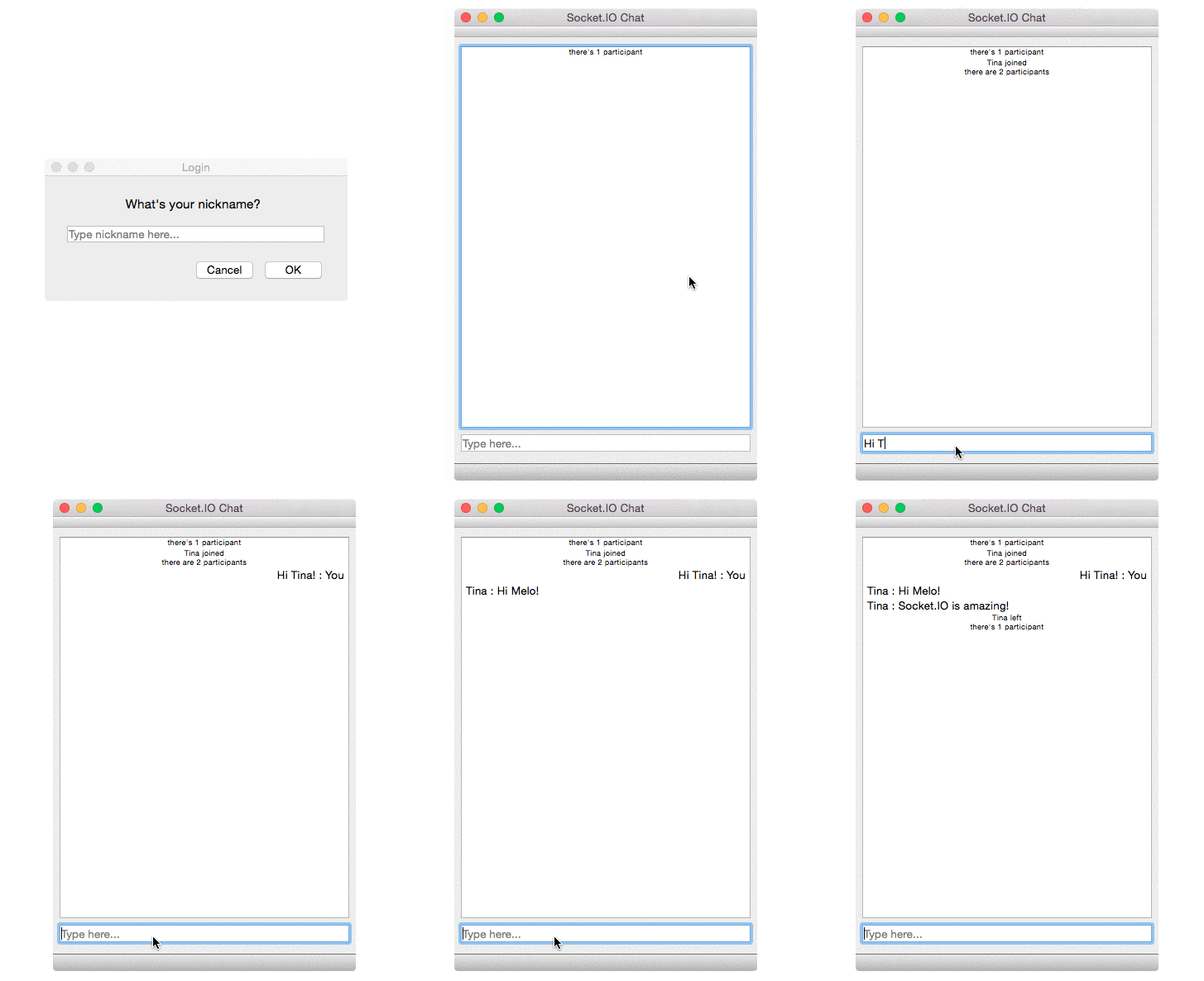
In this tutorial we’ll learn how to create a QT chat application that communicates with a Socket.IO Node.JS chat server.
Introduction
To follow along, start by cloning the repository: socket.io-client-cpp. Using:
git clone --recurse-submodules https://github.com/socketio/socket.io-client-cpp.git
The app has the following features:
-
Sending a message to all users joining to the room.
-
Notifies when each user joins or leaves.
-
Notifies when an user start typing a message.
###Install QT community Visit QT community download link to get the install package. Just install it with default installation option.
###Create a QT GUI application.
Launch QT Creator.
In welcome page, select New Project, create a QT Widget Application, named it SioChatDemo
The project structure is like:
SioChatDemo
    |__ SioChatDemo.pro
    |__Headers
    |   |__mainwindow.h
    |__Sources
    |   |__main.cpp
    |   |__mainwindow.cpp
    |__Forms
        |__mainwindow.ui
Import SioClient and config compile options.
Let's copy the SioClient into the QT project as a subfolder sioclient.
Edit SioChatDemo.pro to config paths and compile options, simply add:
SOURCES += ./sioclient/src/sio_client.cpp \
           ./sioclient/src/sio_packet.cpp

HEADERS  += ./sioclient/src/sio_client.h \
            ./sioclient/src/sio_message.h

INCLUDEPATH += $$PWD/sioclient/lib/rapidjson/include
INCLUDEPATH += $$PWD/sioclient/lib/websocketpp
Also add two additional compile option
CONFIG+=no_keywords
CONFIG+=c++11
no_keywords is for preventing qmake treat some function's name emit as the keyword of signal-slot mechanism.
c++11 ask for C++11 support.
Make up mainwindow ui.
Make up a simple ui by drag and drop widget from Widget box in left side.
We finally end up with this:
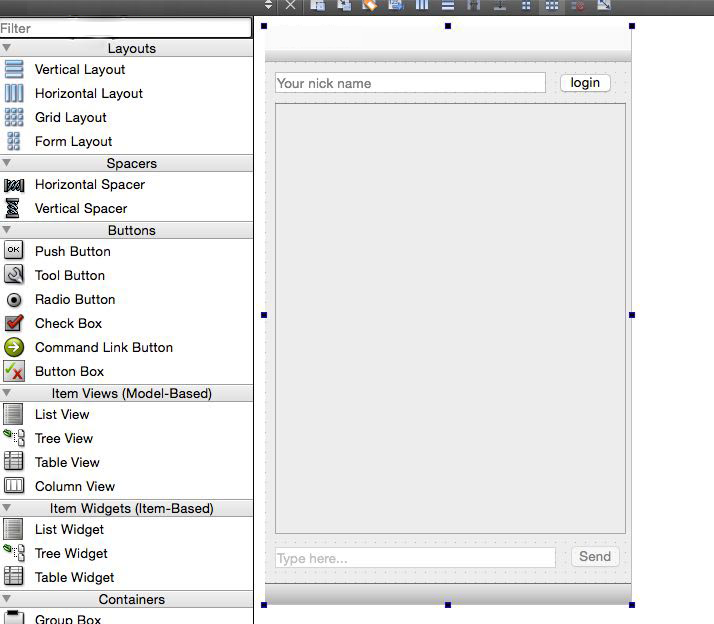
It contains:
-
a
QLineEditat the top for nickname inputing, namednickNameEdit -
a
QPushButtonat the topright for login, namedloginBtn -
a
QListWidgetat the center for showing messages, namedlistView -
a
QLineEditat the bottom for typing message, namedmessageEdit -
a
QPushButtonat the bottomright for sending message, namedsendBtn
Add Slots in mainwindow
Slots need to be added in mainwindow class to handle UI events.They are
-
click login button
-
click send message button
-
text change in messageEdit(for typing status)
-
message editing is returned (for sending message by return)
Insert following code into MainWindow class in mainwindow.h
public Q_SLOTS:
    void SendBtnClicked();
    void TypingChanged();
    void LoginClicked();
    void OnMessageReturn();
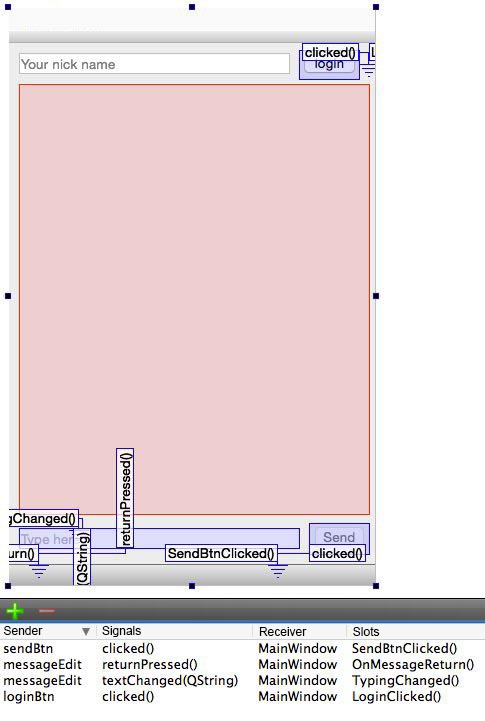
Connect UI event signal and slots together
Open mainwindow.ui in Design mode. switch to signals/slots mode by check Menu->Edit->Edit Signals/Slots
By press left mouse on widget and drag on to the window (cursor will become a sign of electrical ground), to open the connection editor.
In the connection editor, edit the slots of MainWindow at the right side, add Those slots function name added in mainwindow.h before.
Then we'll be able to connect the event signal from widget with our own slots.
We finally end up with this:
Adding UI refresh Signals/Slots
sio::client's callbacks are not in UI thread. However, UI is required to be updated by those callbacks, so we need some Signal for non-UI thread to "request" Slots functions been called in UI thread. Say if we want to signal QListWidgetItem being added, add:
//In mainwindow.h
Q_SIGNALS:
    void RequestAddListItem(QListWidgetItem *item);
private Q_SLOTS:
    void AddListItem(QListWidgetItem *item);
//In mainwindow.cpp
void MainWindow::AddListItem(QListWidgetItem* item)
{
    this->findChild<QListWidget*>("listView")->addItem(item);
}
Then connect them in MainWindow constructor.
connect(this,SIGNAL(RequestAddListItem(QListWidgetItem*)),this,SLOT(AddListItem(QListWidgetItem*)));
Init sio::client in MainWindow
For single window applications, simply let MainWindow class holding the sio::client object:
declare a unique_ptr member of sio::client and Several event handling functions in mainwindow.h
private:
    void OnNewMessage(std::string const& name,message::ptr const& data,bool hasAck,message::ptr &ack_resp);
    void OnUserJoined(std::string const& name,message::ptr const& data,bool hasAck,message::ptr &ack_resp);
    void OnUserLeft(std::string const& name,message::ptr const& data,bool hasAck,message::ptr &ack_resp);
    void OnTyping(std::string const& name,message::ptr const& data,bool hasAck,message::ptr &ack_resp);
    void OnStopTyping(std::string const& name,message::ptr const& data,bool hasAck,message::ptr &ack_resp);
    void OnLogin(std::string const& name,message::ptr const& data,bool hasAck,message::ptr &ack_resp);
    void OnConnected();
    void OnClosed(client::close_reason const& reason);
    void OnFailed();

    std::unique_ptr<client> _io;
Init sio::client and setup event bindings for default socket in MainWindow constructor.
And we also need to handle the connectivity events, handle the connect and disconnect events.
Now the MainWindow constructor:
MainWindow::MainWindow(QWidget *parent) :
    QMainWindow(parent),
    ui(new Ui::MainWindow),
    _io(new client())
{
    ui->setupUi(this);
    using std::placeholders::_1;
    using std::placeholders::_2;
    using std::placeholders::_3;
    using std::placeholders::_4;
    socket::ptr sock = _io->socket();
    sock->on("new message",std::bind(&MainWindow::OnNewMessage,this,_1,_2,_3,_4));
    sock->on("user joined",std::bind(&MainWindow::OnUserJoined,this,_1,_2,_3,_4));
    sock->on("user left",std::bind(&MainWindow::OnUserLeft,this,_1,_2,_3,_4));
    sock->on("typing",std::bind(&MainWindow::OnTyping,this,_1,_2,_3,_4));
    sock->on("stop typing",std::bind(&MainWindow::OnStopTyping,this,_1,_2,_3,_4));
    sock->on("login",std::bind(&MainWindow::OnLogin,this,_1,_2,_3,_4));
    //default socket opened, also we have "set_open_listener" for monitoring physical connection opened.
    _io->set_socket_open_listener(std::bind(&MainWindow::OnConnected,this,std::placeholders::_1));
    //physical connection closed or drop.
    _io->set_close_listener(std::bind(&MainWindow::OnClosed,this,_1));
    //physical connection fail to establish.
    _io->set_fail_listener(std::bind(&MainWindow::OnFailed,this));
    connect(this,SIGNAL(RequestAddListItem(QListWidgetItem*)),this,SLOT(AddListItem(QListWidgetItem*)));
}
Managing connection state
We have several connection listeners for connection events.
First we want to send login message once we're connected, get the default socket from client to do that.
void MainWindow::OnConnected()
{
    QByteArray bytes = m_name.toUtf8();
    std::string nickName(bytes.data(),bytes.length());
    _io->socket()->emit("add user", nickName);
}
Then if connection is closed or failed, we need to restore to the UI before connect.
void MainWindow::OnClosed(client::close_reason const& reason)
{
    //restore UI to pre-login state
}

void MainWindow::OnFailed()
{
    //restore UI to pre-login state
}
If MainWindow is exit, we need to clear event bindings and listeners.
the sio::client object will be destruct by unique_ptr
MainWindow::~MainWindow()
{
    _io->socket()->off_all();
    _io->socket()->off_error();
    delete ui;
}
Handle socket.io events
We'll need to handle socket.io events in our functions bind to socket.io events.
For example, we need to show received messages to the listView
void MainWindow::OnNewMessage(std::string const& name,message::ptr const& data,bool hasAck,message::ptr &ack_resp)
{
    if(data->get_flag() == message::flag_object)
    {
        std::string msg = data->get_map()["message"]->get_string();
        std::string name = data->get_map()["username"]->get_string();
        QString label = QString::fromUtf8(name.data(),name.length());
        label.append(':');
        label.append(QString::fromUtf8(msg.data(),msg.length()));
        QListWidgetItem *item= new QListWidgetItem(label);
        //emit RequestAddListItem signal
        //so that 'AddListItem' will be executed in UI thread.
        Q_EMIT RequestAddListItem(item);
    }
}
Sending chat message
When sendBtn is clicked, we need to send the text in messageEdit to chatroom.
Add code to SendBtnClicked():
void MainWindow::SendBtnClicked()
{
    QLineEdit* messageEdit = this->findChild<QLineEdit*>("messageEdit");
    QString text = messageEdit->text();
    if(text.length()>0)
    {
        QByteArray bytes = text.toUtf8();
        std::string msg(bytes.data(),bytes.length());
        _io->socket()->emit("new message",msg);//emit new message
        text.append(":You");
        QListWidgetItem *item = new QListWidgetItem(text);
        item->setTextAlignment(Qt::AlignRight);
        Q_EMIT RequestAddListItem(item);
        messageEdit->clear();
    }
}
Further reading
You can run Demo project to have a closer look. Before running, please follow the instructions to make the sioclient library.